OpenClaw WhatsApp Setup: Complete Step-by-Step Guide
CampeloClaw Team · · 6 min read
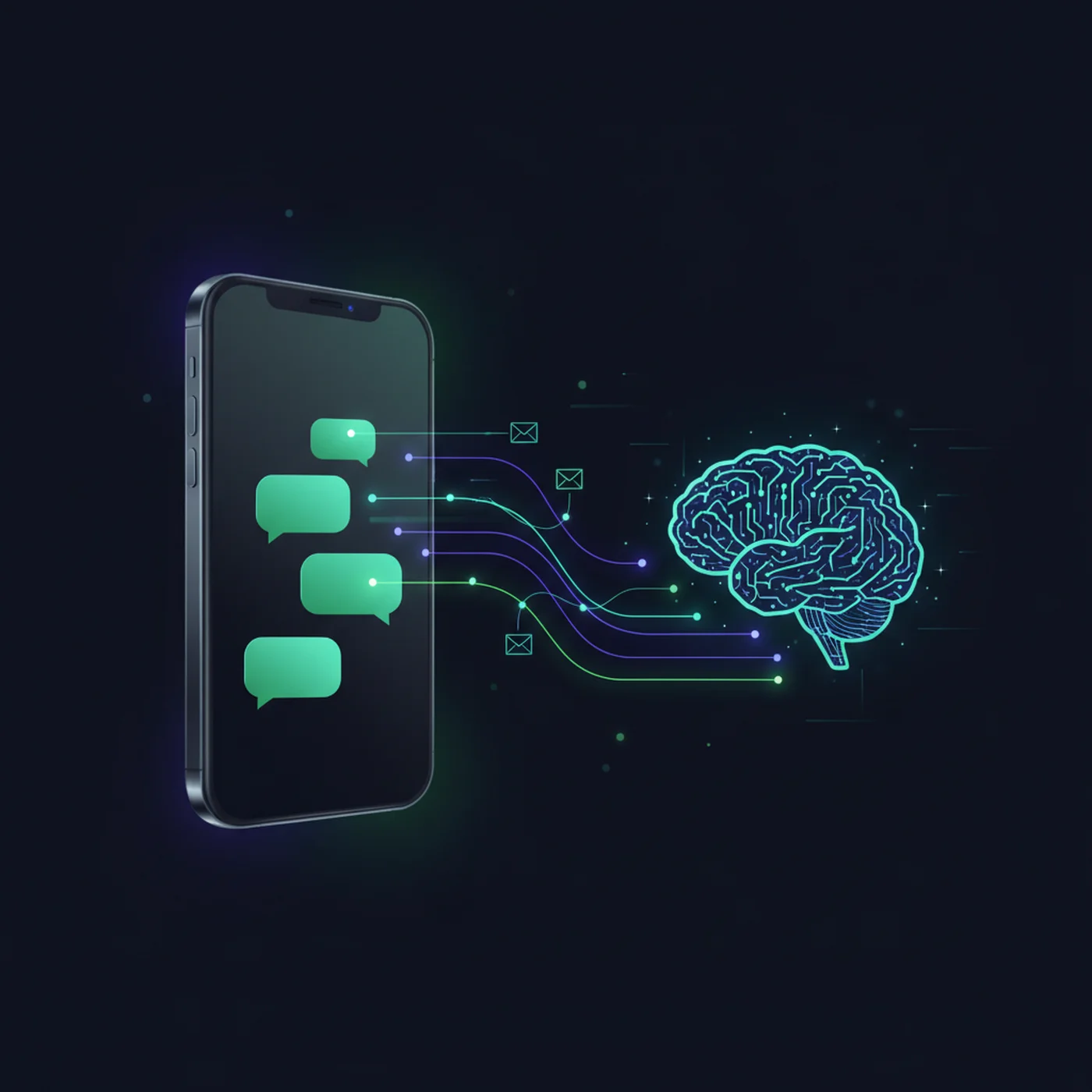
WhatsApp is by far the most popular channel for OpenClaw users. The reason is simple: most people already have WhatsApp on their phone, and texting your AI assistant feels natural — like messaging a very capable colleague. Within 15 minutes of connecting WhatsApp, you can send your first command and watch your agent take action.
This guide walks you through the entire WhatsApp setup process step by step. We cover the QR code connection method (the easiest), configuration options, sending your first message, and troubleshooting the most common errors people encounter.
Before You Start: What You Need
- A working OpenClaw installation (Gateway running on your machine or server)
- A smartphone with WhatsApp installed
- A WhatsApp account (can be your personal number or a separate number)
- Access to your OpenClaw admin panel or configuration files
Important: OpenClaw connects to WhatsApp using the WhatsApp Web protocol. This means your phone needs to stay connected to the internet for the connection to work. If your phone goes offline, your WhatsApp agent pauses until it reconnects. For 24/7 reliability, some users get a dedicated cheap phone or SIM card.
Step 1: Enable the WhatsApp Channel
In your OpenClaw configuration, you need to enable the WhatsApp channel. This tells the Gateway to start the WhatsApp Web connection process. The exact method depends on how you installed OpenClaw — through the admin UI, the configuration file, or the command line.
If you are using the admin panel (Mission Control), navigate to Channels and click "Add Channel," then select WhatsApp. If you are editing configuration files directly, you add the WhatsApp channel configuration to your gateway settings.
Step 2: Scan the QR Code
After enabling the WhatsApp channel, OpenClaw generates a QR code — exactly like WhatsApp Web does in your browser. You scan this QR code with your phone to authenticate the connection.
- Open WhatsApp on your phone
- Go to Settings → Linked Devices → Link a Device
- Point your camera at the QR code displayed by OpenClaw
- Wait for the connection to establish (usually 5-10 seconds)
- You should see "WhatsApp connected" in your OpenClaw logs
Once connected, your OpenClaw agent can receive and send WhatsApp messages. The connection persists until you manually disconnect it or your phone goes offline for an extended period.
Step 3: Send Your First Message
The moment of truth. Open WhatsApp on your phone and send a message to yourself (or the number connected to OpenClaw). Start with something simple.
- Try: "Hello, are you there?" — your agent should respond with a greeting
- Try: "What time is it?" — tests basic response capability
- Try: "Summarize the top 3 news stories today" — tests web search skills
- Try: "What is on my calendar for tomorrow?" — tests calendar integration (if configured)
If your agent responds, congratulations — your WhatsApp connection is working. If it does not respond within 30 seconds, check the troubleshooting section below.
Step 4: Configure Message Settings
Once the basic connection works, you should configure how your agent handles WhatsApp messages.
- Response delay: add a 1-3 second delay so your agent does not respond inhumanly fast (avoids raising suspicion with contacts)
- Message length: configure maximum response length to avoid walls of text on mobile screens
- Voice messages: OpenClaw can transcribe incoming voice messages and respond with text or voice
- Group chat behavior: decide whether your agent should respond in group chats, only when mentioned, or stay silent
- Media handling: configure how your agent handles incoming images, documents, and links
- Allowed contacts: optionally restrict which phone numbers can interact with your agent
Step 5: Set Up Your First Automation
The real power of OpenClaw on WhatsApp comes from automation — tasks that run without you sending a message. The most popular first automation is the morning briefing.
Configure the Heartbeat feature to send you a WhatsApp message every morning at your preferred time. It summarizes your emails, calendar events, weather, and any tasks due today. You wake up, check your WhatsApp, and immediately know what your day looks like — without opening five different apps.
Troubleshooting Common WhatsApp Issues
QR code does not appear
Check that the WhatsApp channel is enabled in your configuration. Verify the Gateway is running (check logs for errors). Some installations require restarting the Gateway after enabling a new channel.
Connection drops frequently
WhatsApp Web connections require your phone to maintain an internet connection. If your phone enters deep sleep or loses connectivity, the link drops. Solutions: keep your phone plugged in and connected to WiFi, disable battery optimization for WhatsApp, or use a dedicated device.
Agent does not respond to messages
Verify the connection shows as active in your OpenClaw logs. Check that your AI model API key is valid and has credit. Ensure the message is being received (check incoming message logs). If logs show the message arriving but no response, the issue is likely with your AI model configuration.
Risk of WhatsApp account ban
WhatsApp does not officially support bot accounts on personal numbers. Sending too many automated messages, especially to contacts who have not messaged you first, can trigger a temporary or permanent ban. To minimize risk: only respond to incoming messages (do not spam contacts), add a realistic response delay, avoid bulk messaging, and consider using WhatsApp Business API for commercial use. See our security guide for best practices.
Module 3 of our CampeloClaw course covers WhatsApp setup in complete detail — including video walkthroughs of every step, advanced configuration, and workarounds for common issues that tutorials skip over.
Frequently Asked Questions
Written by CampeloClaw Team
We teach non-technical users how to build AI employees with OpenClaw.
Keep reading
Ready to master OpenClaw?
Go from zero to running your own 24/7 AI assistant with our hands-on course.
Get Access→